Unveiling Creativity: A Guide to Adding a Custom Stage on StageKeep
Whether you’re orchestrating performances in cheerleading, dance, on the field, or in the theater, StageKeep will allow you to plan with precision.
Follow these simple steps:
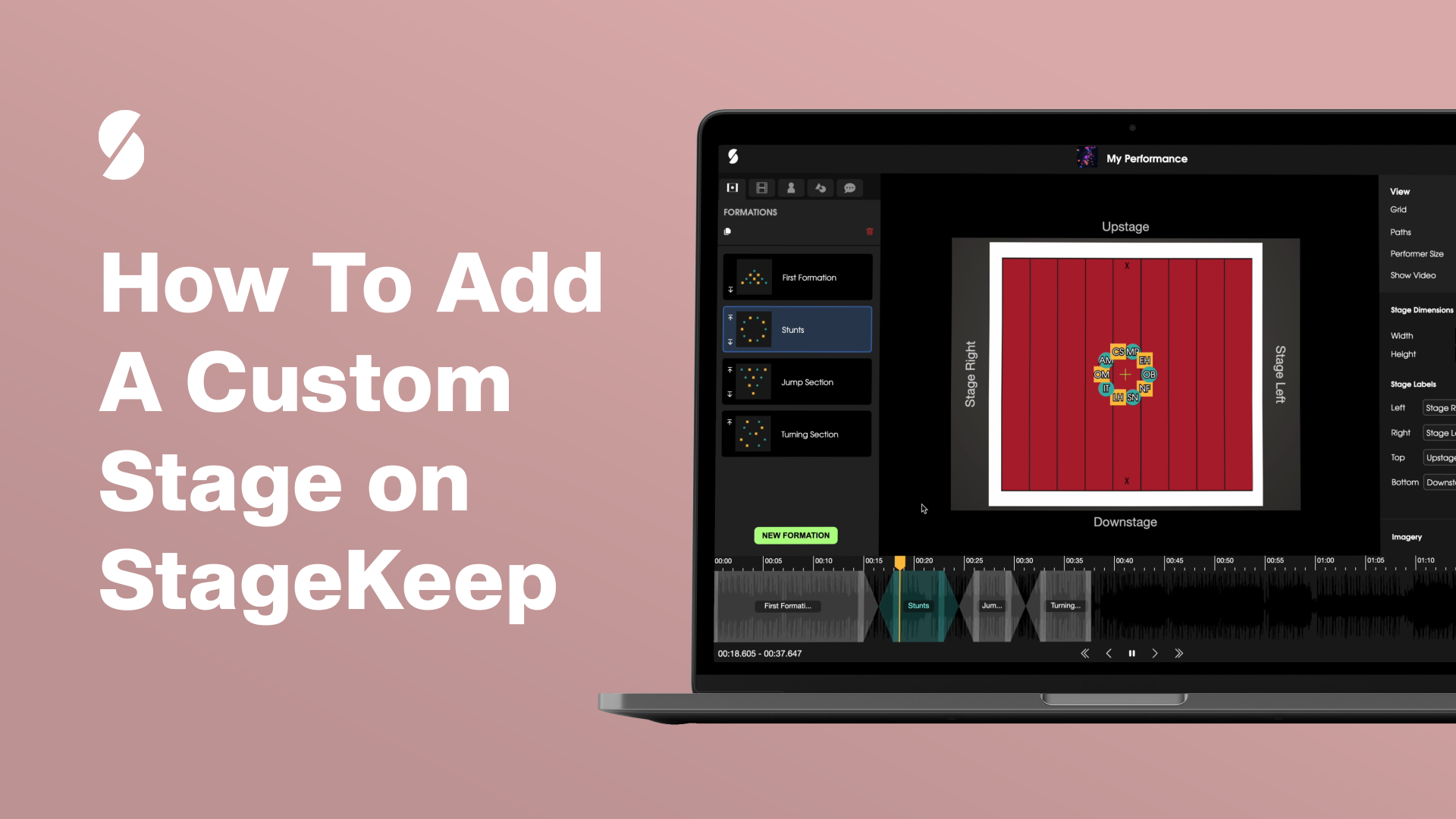
- Access the grid tools located on the upper right side of the platform.
- To establish a stage border, click on the “Add Stage Border” button under the “Stage Design” section.
- Customize your custom stage dimensions by meters or feet.
- Add a visual touch by attaching an image of your stage. Navigate to the “Imagery” section, click “Add Image,” and upload your selected stage image. Ensure the image dimensions align with your custom stage with your chosen unit of measurement, be it meters or feet.
Pro Tip: Optimal clarity comes from using an image with larger dimensions than the stage borders. This allows you to seamlessly position performers on or off the stage, enhancing the clarity of your plan.
- Refine your view by turning off the grid. Simply click the toggle button next to it to reveal the clear background of your stage.